
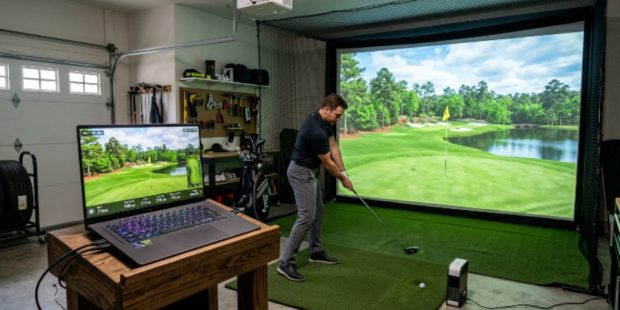
Golf simulators have changed the way people practice and enjoy the game. You no longer need to drive to a course or wait for good weather. Instead, you can set up a simulator in your garage, basement, or spare room and play year-round. However, to get the most out of a modern golf sim, you need a laptop that can handle the demand. This guide helps you understand exactly what to look for so you can make a smart purchase.
Why Your Laptop Choice Matters for Golf Simulators
Golf simulator software is far more demanding than most people expect. Programs like E6 Connect, TGC 2019, and GSPro render highly detailed courses in real time. Every blade of grass, every shadow, and every camera angle requires serious processing power.
A slow or underpowered laptop will deliver choppy graphics, long loading times, and lag during your swing analysis. That ruins the experience entirely. Therefore, choosing the right machine from the start is one of the most important decisions you will make when building a home simulator setup.
Understanding the Core Hardware Requirements
Before you shop, you need to understand which hardware components matter most. Golf simulator software leans heavily on three things: the graphics card, the processor, and the memory. Getting all three right means a smooth, immersive experience every time you step up to the mat.
The Graphics Card Is Everything
The GPU is the single most important component in a golf sim laptop. It handles all the visual rendering — course textures, lighting, ball flight paths, and replay cameras. A weak GPU will bottleneck the entire system, no matter how good the rest of the hardware is.
For 2026, NVIDIA’s RTX series remains the gold standard for simulator performance. An RTX laptop golf setup benefits from ray tracing and DLSS technology, which allows the software to render stunning visuals without crushing the frame rate. At minimum, look for an RTX 4060 laptop GPU. For the best experience at higher resolutions, an RTX 4070 or above is worth the extra investment.
Avoid integrated graphics entirely. They are simply not built for this kind of workload.
The Processor Needs to Keep Up
The CPU works alongside the GPU to handle physics calculations, swing data processing, and background tasks. A slow processor creates bottlenecks even when the GPU is powerful.
Look for a laptop powered by an Intel Core i7 or i9 (13th or 14th generation) or an AMD Ryzen 7 or 9 series processor. These chips handle multitasking smoothly. Additionally, they keep up with the simultaneous demands of simulator software, launch monitor communication, and any recording or streaming you might do.
RAM and Storage Make a Real Difference
Most golf simulator software recommends at least 16GB of RAM. However, 32GB gives you much more headroom, especially if you run other applications in the background. More RAM means faster course loading and smoother transitions between holes.
For storage, always choose a solid-state drive over a traditional hard drive. An SSD dramatically reduces load times. A 512GB SSD is the minimum you should consider, but 1TB is a better long-term choice if you plan to install multiple simulator programs and course packs.
Display Quality and Resolution
The display is your window into the virtual course. A high-quality screen makes the experience far more enjoyable and realistic.
For simulator use, aim for a display with at least a 1080p resolution and a 144Hz refresh rate. The higher refresh rate makes motion look fluid and natural, particularly during ball flight animations and swing replays. If budget allows, a 1440p screen at 165Hz is even better.
Screen size also matters. A 15.6-inch or 17.3-inch display gives you more room to see course details clearly. Larger screens are especially useful if you are not projecting onto an external display and instead using the laptop screen as your main visual output.
Additionally, look for a panel with good color accuracy and brightness. An IPS or OLED panel delivers richer greens, more accurate sky colors, and better contrast than a basic TN panel.
Cooling and Thermal Performance
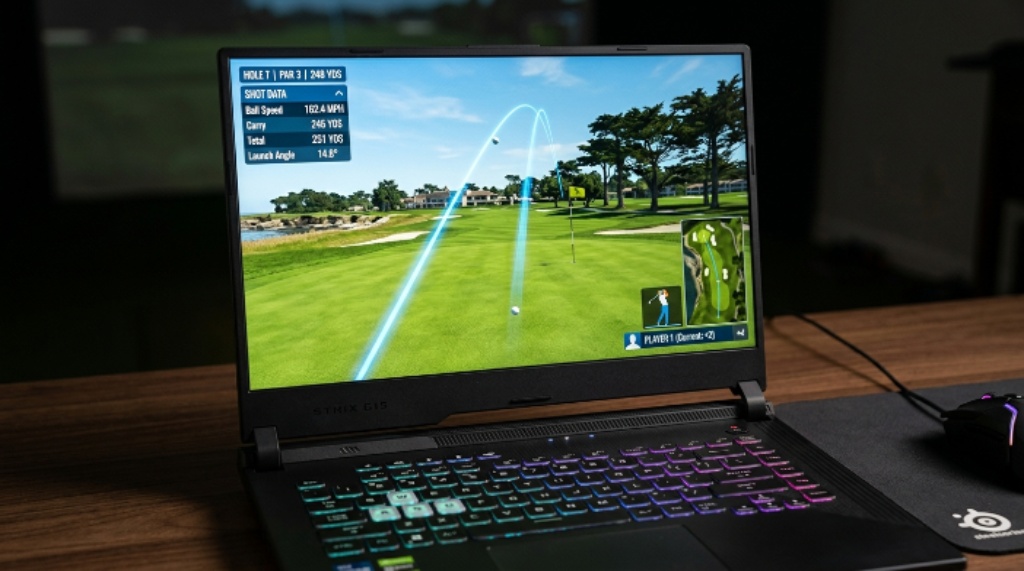
A high performance laptop golf sim setup pushes hardware hard, and that generates a lot of heat. Laptops that overheat will throttle their performance to protect internal components. That means frame drops and sluggish response at exactly the wrong moment.
When evaluating laptops, pay close attention to the cooling system. Look for models with multiple heat pipes, dual fans, and generous ventilation vents. Many gaming laptop brands now include software that lets you switch between performance modes. Always run your simulator on the highest performance mode available.
Avoid using the laptop on soft surfaces like beds or couches, as they can block the vents. A laptop cooling pad is a worthwhile accessory that costs very little and keeps temperatures in a safe range during long sessions.
Connectivity and Ports
Golf simulators rely on communication between the laptop and the launch monitor. Most launch monitors connect via USB, Ethernet, or Wi-Fi. Therefore, your laptop needs to have the right ports and a reliable wireless card.
Here is what to look for in terms of connectivity:
- At least two USB-A ports for launch monitor and accessories
- One USB-C or Thunderbolt port for data transfer or external displays
- An HDMI 2.0 or 2.1 port if you plan to connect to a projector or large TV
- Wi-Fi 6 or Wi-Fi 6E for fast, stable wireless performance
- A Gigabit Ethernet port or a USB-to-Ethernet adapter for wired connections
Some launch monitors, like the Uneekor QED or Foresight GCQuad, require specific connection types. Always check your launch monitor’s requirements before finalizing your laptop choice.
Battery Life and Power Considerations
Gaming laptops are not known for impressive battery life, and that is perfectly acceptable for simulator use. In most cases, your simulator setup will be in a fixed location with a power outlet nearby. Therefore, battery life is not a top priority here.
However, make sure the laptop’s power adapter is included and rated for the full performance output of the machine. Some laptops throttle performance when running on battery power alone. Always plug in during simulator sessions to get maximum GPU and CPU performance.
Budget and Value Considerations
You do not have to spend a fortune to get great simulator performance. The market in 2026 offers excellent options across several price ranges.
For a solid entry-level setup, a laptop with an RTX 4060, a Core i7 processor, 16GB of RAM, and a 512GB SSD will handle most popular simulator programs comfortably. These machines typically cost between $900 and $1,200.
For serious players who want the best visuals and the smoothest frame rates, a high performance laptop golf sim build with an RTX 4070 Ti or RTX 4080, 32GB of RAM, and a 1TB SSD is the way to go. Expect to pay between $1,500 and $2,500 for this tier.
Mid-range options in the $1,200 to $1,500 range hit a sweet spot for most home simulator users. They offer strong GPU performance, plenty of RAM, and fast storage without the premium price tag of a flagship machine.
Software Compatibility
Not every golf simulator program runs the same way. Before buying a laptop, check the official system requirements for the simulator software you plan to use.
GSPro, for example, runs well on mid-range hardware. E6 Connect and Creative Golf 3D are more demanding. TGC 2019 sits somewhere in between. Additionally, if you plan to use multiple programs, build your setup around the most demanding title to ensure everything runs smoothly.
Also confirm that your launch monitor’s companion software is compatible with Windows 11, which is the operating system found on most new laptops in 2026.
Conclusion
Picking the right laptop for a golf simulator comes down to a handful of key factors. Start with the GPU — an RTX laptop golf configuration delivers the visual performance that modern simulator software demands. Pair that with a powerful CPU, at least 16GB of RAM, and a fast SSD. Add a high-refresh display, a solid cooling system, and the right ports, and you have a machine built for long, enjoyable sim sessions.
Whether you are a beginner setting up your first home simulator or an experienced player upgrading your rig, the right laptop makes a meaningful difference. Take your time, match the specs to your software, and invest in a machine that will serve you well for years to come.
Frequently Asked Questions
Can I use a regular laptop for a golf simulator?
You can, but the experience will likely be poor. Most regular laptops use integrated graphics, which cannot handle the rendering demands of golf simulator software. A dedicated gaming laptop with a discrete GPU is strongly recommended.
How much VRAM do I need for golf simulator software?
At minimum, look for 8GB of VRAM. Most modern RTX 4060 and 4070 laptop GPUs come with 8GB or more. If you plan to run simulations at 1440p or higher, 12GB of VRAM gives you extra headroom.
Does the laptop brand matter for simulator performance?
Brand matters less than the internal specs. ASUS ROG, Lenovo Legion, MSI, and Razer all produce reliable gaming laptops in 2026. Focus on the GPU, CPU, and cooling system rather than the brand name.
Is Wi-Fi enough, or do I need a wired connection for my launch monitor?
It depends on the launch monitor. Many modern units work well over Wi-Fi 6. However, if you experience lag or connection drops, switching to a wired Ethernet connection often solves the problem instantly.
Can I connect my gaming laptop to a projector for a full simulator screen?
Yes. Most gaming laptops include an HDMI port that connects easily to a projector. Make sure the laptop’s HDMI port supports at least 1080p at 60Hz for a clean image on your impact screen.
Related Topics:
How to Pick Cruiser Skateboard Wheels for a Smooth Ride
How to Choose Comfortable Running Shoes for Men and Women
