
Printer interruptions waste valuable office time and reduce daily productivity. Studies estimate employees spend several minutes resolving printing issues every week, while paper jams remain among the most common printer problems. Learning printer paper jam prevention techniques helps reduce downtime and protects expensive office equipment. This guide explains practical methods that keep printers running smoothly while preventing repeated paper feeding problems.
Understand Why Printer Paper Jams Happen
Every paper jam begins with an underlying cause rather than simple bad luck. Therefore, identifying that cause prevents repeated interruptions and unnecessary maintenance expenses.
Dust, humidity, worn rollers, overloaded trays, and poor quality paper frequently create feeding problems. Likewise, maintaining an organized workspace with spiral ducts benefit planning can improve airflow and reduce airborne dust around office equipment.
Many modern printers display detailed error messages that identify the jam location. Consequently, users can solve problems faster without guessing which internal section requires attention.
Most Common Causes
- Using damaged or curled paper
- Loading too many sheets into the tray
- Dirty pickup rollers
- Incorrect paper guides
- Mixed paper sizes
- Low quality printing paper
- Humidity affecting paper condition
Load Paper the Right Way Every Time
Correct paper loading remains the easiest method for preventing repeated jams. Furthermore, proper loading improves print quality and reduces unnecessary wear on moving components.
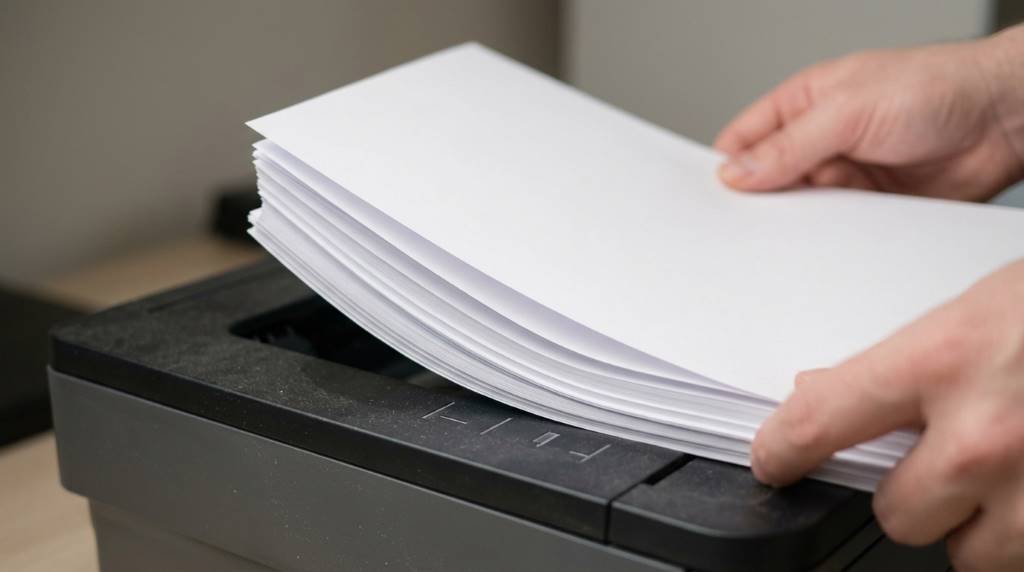
Fan every paper stack before placing it into the input tray. This simple action separates sheets and prevents multiple pages from feeding simultaneously.
Adjust both paper guides until they gently touch each paper edge. However, avoid squeezing the stack because excessive pressure creates feeding resistance.
Never exceed the maximum tray capacity listed by the printer manufacturer. Instead, reload smaller stacks whenever the remaining paper becomes low.
Paper Loading Checklist
- Remove bent sheets
- Align all paper edges
- Check paper size settings
- Avoid mixing different paper weights
- Keep paper dry before loading
Keep Printer Rollers Clean and Working Properly
Pickup rollers grip every sheet entering the printer during operation. Therefore, dirty rollers often become the primary reason behind recurring paper jams.
Turn the printer off before beginning any cleaning procedure. Then use a lint free cloth with a small amount of water to remove accumulated dust.
Allow every roller to dry completely before reconnecting power. Meanwhile, creating an efficient workspace through colour schemes maximise office productivity planning encourages employees to keep equipment areas cleaner.
If rollers appear cracked or smooth, replacement becomes the safest long term solution. Fresh rollers improve paper grip and restore consistent feeding performance.
Signs Your Rollers Need Attention
- Frequent paper misfeeds
- Multiple sheets entering together
- Printer slipping during paper pickup
- Visible roller wear
- Repeated jams at tray entry
Choose the Right Paper for Your Printer
Not every paper type performs equally inside every printer model. Consequently, selecting compatible paper significantly reduces frustrating feeding problems.
Always match paper weight with manufacturer recommendations before purchasing supplies. Additionally, store unopened paper in a cool and dry environment.
High humidity causes paper edges to curl and absorb moisture quickly. Likewise, improving office organisation with space saving office furniture creates better storage areas for printing supplies.
Discard paper showing wrinkles, folded corners, or water damage immediately. Fresh paper always delivers more reliable feeding results.
Recommended Paper Practices
- Store paper flat
- Use unopened packages whenever possible
- Select manufacturer approved paper weights
- Keep paper away from windows
- Avoid damp storage rooms
Remove Paper Jams Safely
Never pull jammed paper aggressively because internal components break easily. Instead, follow the printer display instructions whenever available.
Open every recommended access panel before touching the paper. Afterwards, remove the sheet slowly using both hands with even pressure.
Inspect the printer carefully for torn paper fragments after every jam. Small leftovers often trigger another blockage during the next print job.
Finally, close every cover securely before restarting the printer. Proper closure allows sensors to recognise normal operating conditions again.
Maintain Your Printer Regularly
Routine maintenance prevents many problems before they interrupt daily operations. Therefore, creating a monthly inspection schedule saves valuable working hours.
Clean the paper tray, output tray, and accessible rollers regularly. Likewise, remove visible dust from ventilation openings using a soft brush.
Update printer firmware whenever manufacturers release approved software improvements. Updated firmware sometimes improves paper handling and hardware reliability.
Professional servicing remains worthwhile for heavily used office printers. Preventive maintenance often costs less than emergency repairs after mechanical failures.
Reduce Environmental Factors That Cause Jams
Office conditions directly influence printer reliability throughout the year. Consequently, maintaining stable temperature and humidity improves paper performance.
Avoid placing printers near heating vents or direct sunlight whenever possible. Excessive heat dries internal components and damages stored paper.
Keep surrounding surfaces clean to minimise airborne dust accumulation. Cleaner environments help sensitive paper sensors operate more accurately.
Provide adequate space around every printer for ventilation and easy maintenance. Better accessibility also encourages regular cleaning by office staff.
Know When Professional Help Is Necessary
Some paper jams indicate mechanical failures beyond routine maintenance. Therefore, repeated problems deserve professional inspection before greater damage develops.
Grinding noises, broken rollers, and damaged gears require experienced repair technicians. Continuing normal operation may increase repair costs unnecessarily.
Businesses depending heavily on printing should schedule preventive maintenance visits. Regular inspections reduce unexpected downtime and extend equipment lifespan.
Replacing severely worn parts restores dependable performance and improves workplace productivity. Timely repairs also prevent recurring paper handling problems.
Conclusion
Stopping printer paper jams requires consistent habits rather than complicated repairs. Following proper loading techniques, cleaning rollers, selecting quality paper, and maintaining suitable office conditions greatly improves printer reliability.
Begin applying these practical strategies today to reduce interruptions and extend printer life. Small maintenance efforts now can prevent larger repair expenses and keep every workday running smoothly.
Frequently Asked Questions
Why does my printer keep jamming with new paper?
Incorrect paper loading, dirty rollers, or wrong paper settings usually cause repeated jams.
How often should printer rollers be cleaned?
Clean printer rollers every few months or sooner if frequent jams appear.
Can humidity increase paper jams?
Yes, excessive humidity causes paper to absorb moisture and feed improperly.
Should I reuse paper after removing a jam?
No, damaged paper increases the chance of another printer jam.
When should I replace printer rollers?
Replace rollers when cleaning no longer improves paper feeding performance.
